What Is Spatial Audio? How It Differs from Stereo, What You Need and How to Listen
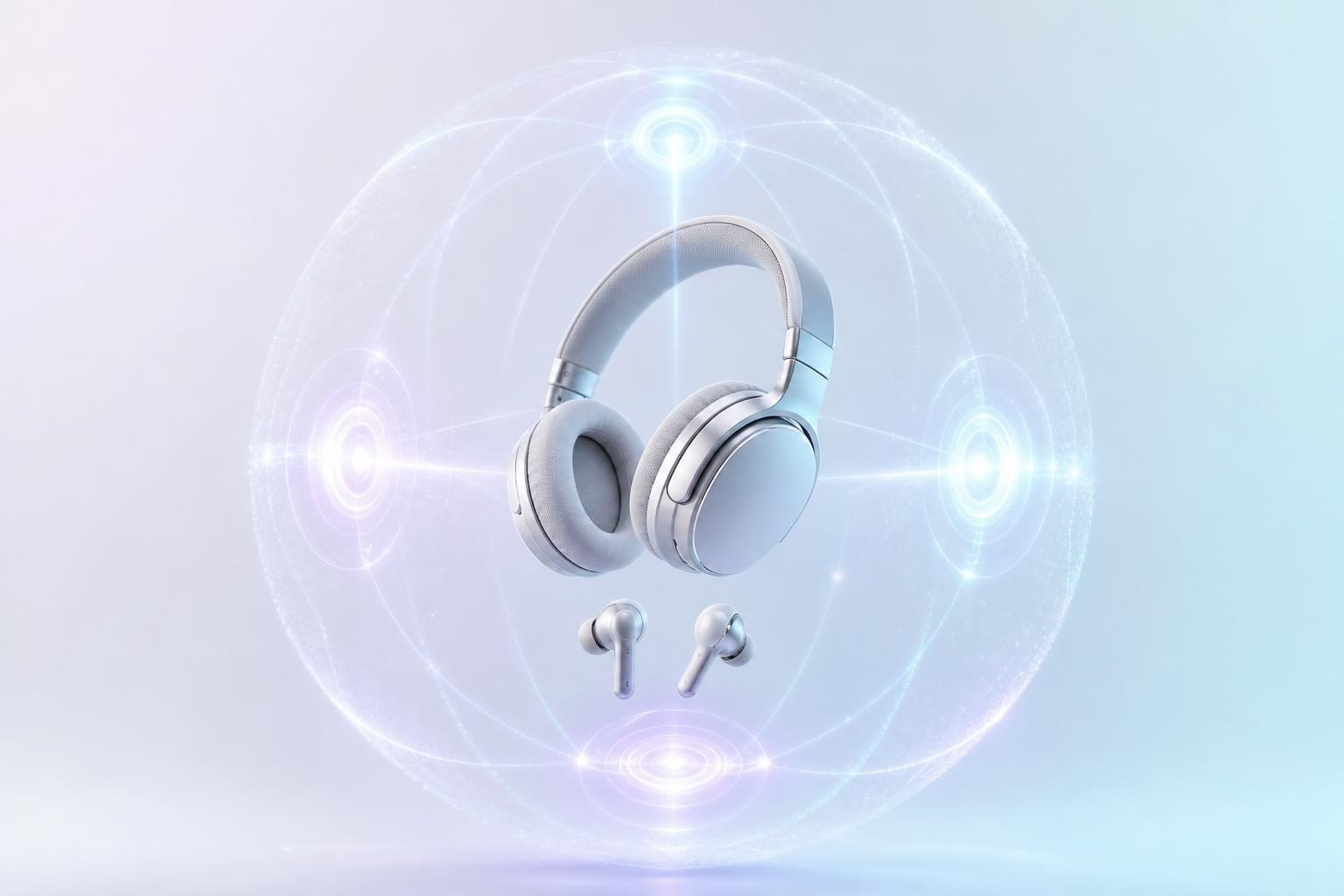
Spatial audio is a listening experience in which sound spreads not only left and right but also in front, behind and above you. The difference from regular stereo lies in how "sound placement" is expressed, but to actually hear it, you need to check that the source, playback service and devices you use are compatible.
In this article, we use Dolby Atmos spatial audio on Apple Music and Sony's 360 Reality Audio as examples to explain what you need in a way that's easy for first-timers to understand.
INDEX
1. What Is Spatial Audio? How It Differs from Stereo
Spatial audio is a general term for listening experiences that make you feel enveloped in sound and perceive the position of sounds three-dimensionally. It isn't the name of a single standard; there are several ways to achieve it, such as Dolby Atmos and 360 Reality Audio.
Ordinary stereo combines two channels, left and right. For example, the vocal is placed in the center and the guitar slightly to the right. Even in stereo, depth can be expressed through reverb and volume adjustments.
On the other hand, with sources produced for immersive audio, sounds can be placed in positions that include front, back and height. By processing this information to suit the listening environment, it can create effects such as a chorus spreading around you or sound effects coming from above. AV Watch's explanation introduces the relationship between "object-based audio," which gives sounds positional information, and processing that adapts to the playback environment.
However, how the sound spreads depends on how the track was produced and the devices you use. Rather than spatial audio always being better than stereo, it's better to think of it as an option to enjoy the same work in a different mix.
2. What Do You Need to Listen? Start by Checking These 4 Things
Before buying compatible products, check the following four things in order.
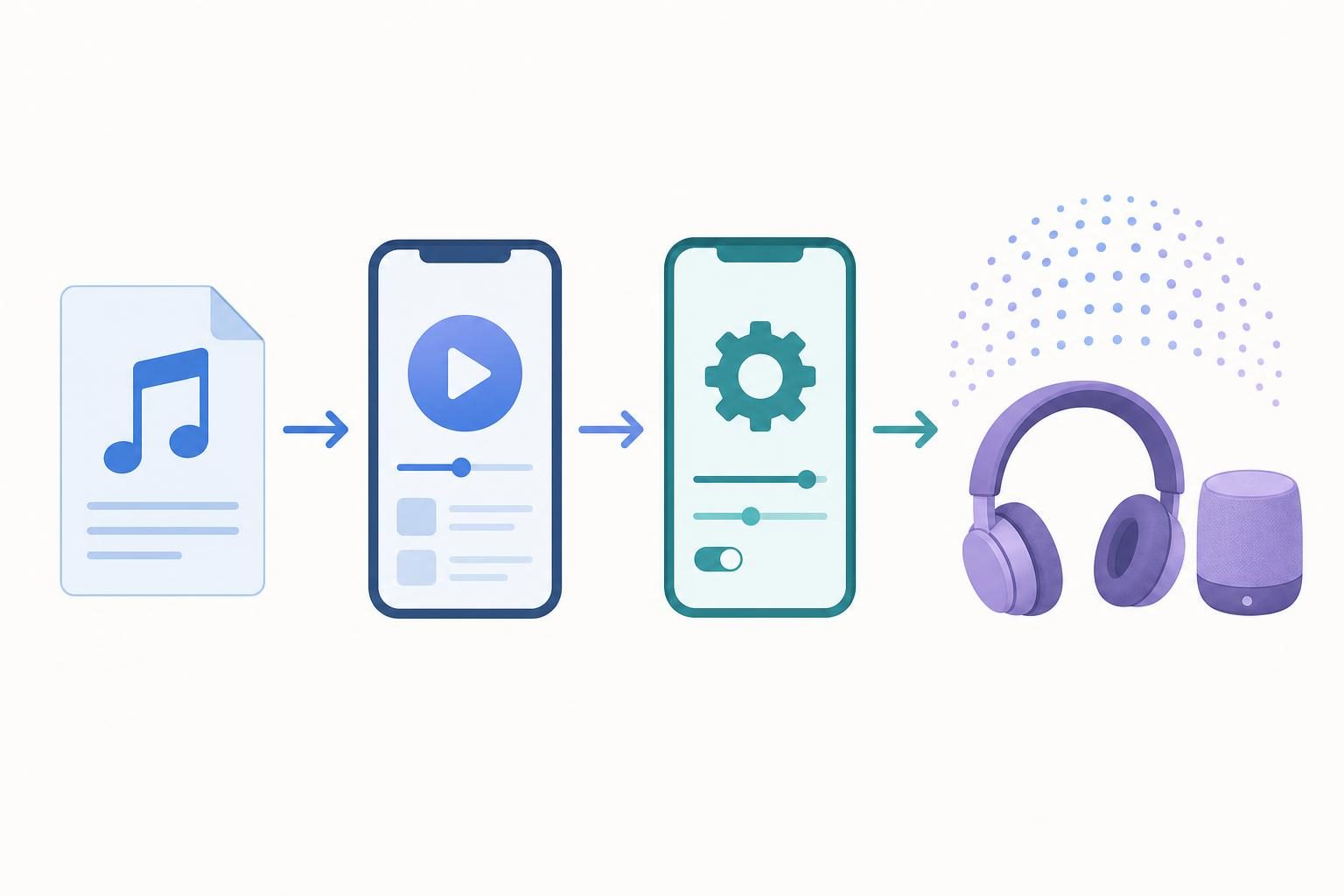
For example, "owning compatible earbuds" alone won't let you listen in that format if compatible sources aren't available. Conversely, with services that can process sound for headphones, you may be able to enjoy it without buying a specially certified model.
The table above shows typical examples. As Apple explains, Dolby Atmos on Apple Music for Android requires a Dolby Atmos-compatible Android device. With speakers too, a label saying "immersive audio" doesn't necessarily mean support for both formats. For details, check Apple's requirements and Sony's information.
3. How to Listen to Spatial Audio with Dolby Atmos on Apple Music
With an Apple Music subscription, you can play some tracks in Dolby Atmos. Not every track is supported, so first play the track you want to hear and check for the "Dolby Atmos" badge on the Now Playing screen. Support may vary from track to track, even within an album.
Steps to try it on iPhone and iPad
1. Subscribe to Apple Music
Also update your iPhone or iPad software to the latest version.
2. Open the settings
Open "Settings" → "Apps" → "Music" → "Dolby Atmos."
3. Choose the playback option
Choose from "Automatic," "Always On" or "Off."
4. Play a compatible track
Check for the Dolby Atmos badge on the Now Playing screen.
According to Apple, with "Automatic," compatible tracks play automatically on Apple or Beats Bluetooth headphones and similar devices. When using wired headphones, choose "Always On". Some models can also play it through compatible built-in speakers. You can check the supported models and steps on Apple's support page.
Listening on Android or speakers
On Android, prepare a Dolby Atmos-compatible device and the latest Apple Music app, then turn on Dolby Atmos in the app's settings. Check with the manufacturer whether the device itself is compatible.
For Apple TV 4K, Apple explains how to combine it with a compatible HomePod, a Dolby Atmos-compatible soundbar, a compatible TV and so on. Check not only the playback device and speakers but also the connection method and settings.
If tracks you've already downloaded are stereo versions, changing the setting alone won't switch the downloaded data. Following Apple's instructions, turn on "Download in Dolby Atmos" and download them again.
4. How to Listen to Sony's 360 Reality Audio
360 Reality Audio uses Sony's immersive audio technology and is a music experience separate from Dolby Atmos. It gives vocals, instruments and other sounds positional information and places them around the listener. Sony's official page also explains compatible decoders based on MPEG-H 3D Audio.
Listening on a smartphone and headphones
1. Subscribe to a compatible service
Subscribe to a music streaming service that supports 360 Reality Audio.
2. Install the app and connect
Install a compatible app on your smartphone and connect your headphones or earbuds.
3. Play a compatible track
Choose a compatible track and play it.
An example of a service is Amazon Music Unlimited (an overview of the service is in "The Expanding Streaming Service with Amazon Music Unlimited"). According to Sony, with a compatible service, you can enjoy 360 Reality Audio even with ordinary headphones. Certified Sony headphones are not a requirement for basic playback.
However, "personalization," which adjusts the sound field to your ears and headphones, is a separate feature. It requires a combination of a compatible certified model, app and service. Sony states that Amazon Music Unlimited does not support this personalization feature. Remember that being able to play it and being able to personalize it are separate things.
When listening on speakers, also pay attention to the connection method
For speakers, in addition to a compatible service and tracks, you need a speaker that can play 360 Reality Audio and a compatible connection method.
For example, Sony's guidance for the SRS-RA5000/SRS-RA3000 and others says that to play compatible tracks on Amazon Music Unlimited, you set up the app and Alexa and select the device using a compatible casting method. The same guidance states that when connected to the speaker via Bluetooth, playback is 2-channel.
The conditions differ between listening to sound processed on a smartphone for headphones and playing compatible audio on the speaker side. Before buying, check the combination of service, model and connection method you want to use.
5. Are "Spatial Audio," "Dolby Atmos" and "360 Reality Audio" the Same?
Even though the names are similar, they refer to different things. When shopping, it's easier to understand if you separate the terms on the box or product page as follows.
For example, a device labeled as supporting Dolby Atmos doesn't automatically support 360 Reality Audio as well. Also, don't treat Dolby Atmos tracks on Apple Music as the same as 360 Reality Audio sources.
"Head tracking" that follows your head movements
With compatible Apple devices and headphones, when you move your head, the sound can be adjusted so that it seems to come from the direction of the playback device. You can also try the difference from "Fixed," where the direction of the sound doesn't change when you move your head.
Apple explains how to switch spatial audio between "Fixed" and "Head Tracked" in Control Center on compatible devices in its headphone user guide. Check separately whether the source supports Dolby Atmos and whether your device supports head tracking.
Also, features that add width to stereo sources are separate from playing sources produced for immersive audio. Applying 3D processing to a stereo track doesn't mean that a Dolby Atmos or 360 Reality Audio version of that track exists.
6. What to Check If You Can't Hear It Properly
If you can't tell the difference even though everything should be compatible, check the following in order before replacing your equipment.
Even if the difference feels small, it doesn't necessarily mean something is broken. The track's mix, how the headphones fit and individual differences in hearing also play a part. It's a good idea to start by comparing the stereo version and the compatible version of the same track at a comfortable volume.
7. Summary | Start by Trying Compatible Tracks on Your Own Devices
Spatial audio is a listening experience for enjoying the position and spread of sound three-dimensionally. To learn how it differs from stereo, start by checking what compatible versions exist for the same track.
For Apple Music, check the Dolby Atmos-compatible tracks and the compatible devices and settings. For 360 Reality Audio, choose a compatible service and tracks, and check the conditions required depending on whether you use headphones or speakers. In either case, a device labeled "spatial audio compatible" doesn't necessarily support every format.
Some combinations can be tried with the smartphone and earbuds you already have. Start by finding compatible tracks on the service you usually use and compare how the sound spreads. For ways to enjoy high-quality music, also see "What is Hi-Res Audio? How to Choose Hi-Res Compatible Earphones" and "What Makes High-Quality Earphones Different!? What Is a Codec?".
Related External Links
Apple Support "About Spatial Audio with Dolby Atmos in Apple Music" (published April 21, 2025)
Sony "How to play 360 Reality Audio content on Amazon Music" (updated January 20, 2026)
Apple"Control Spatial Audio and head tracking on AirPods"
AV Watch "Why Spatial Audio Has Become Interesting Again" (December 24, 2025)
Profile

web creator (design + front-end) who loves techno and other music. not only web-related and media business, but also sound production business.
Click here for inquiries,comments, and job requests.