What Is Auracast? How to Check Phone and Earbud Compatibility and How to Use It
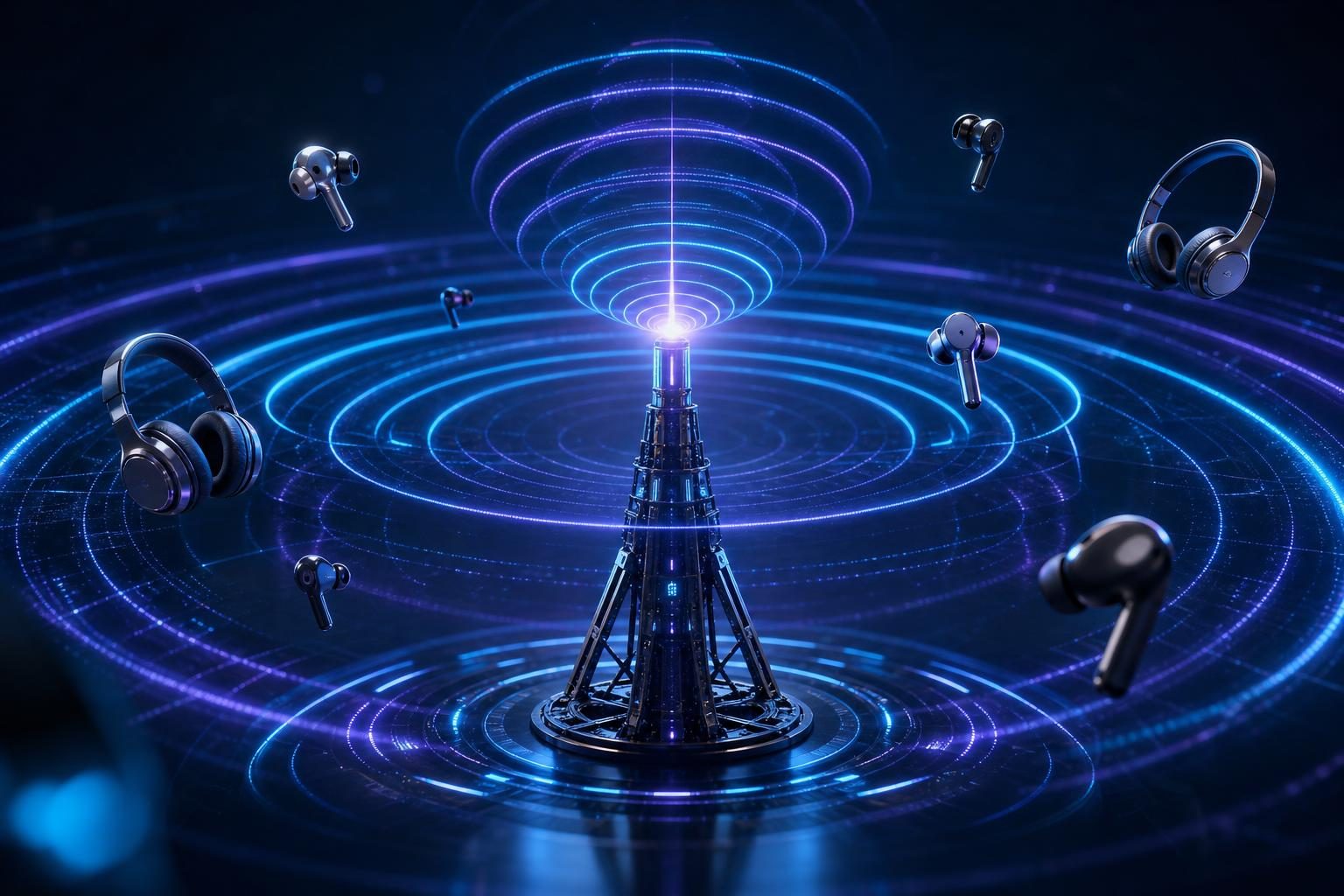
Auracast is a Bluetooth broadcast audio feature that delivers one audio stream to multiple compatible devices nearby. Possible uses include each family member listening to the TV through their own earbuds, or sharing music from your smartphone with friends.
However, not every Bluetooth phone or pair of earbuds can use it. To help you check whether your devices are compatible, we explain how it works, what it's used for and what to check.
INDEX
1. What Is Auracast? How It Delivers Audio to Multiple Devices
Auracast is a broadcast audio feature that uses Bluetooth LE Audio. A transmitter sends audio along with information such as the broadcast's name, and compatible receivers within range choose the broadcast they want to hear and join it. Bluetooth SIG's explanation of how it works describes it as a system that lets multiple receivers listen to one broadcast, like a radio broadcast.
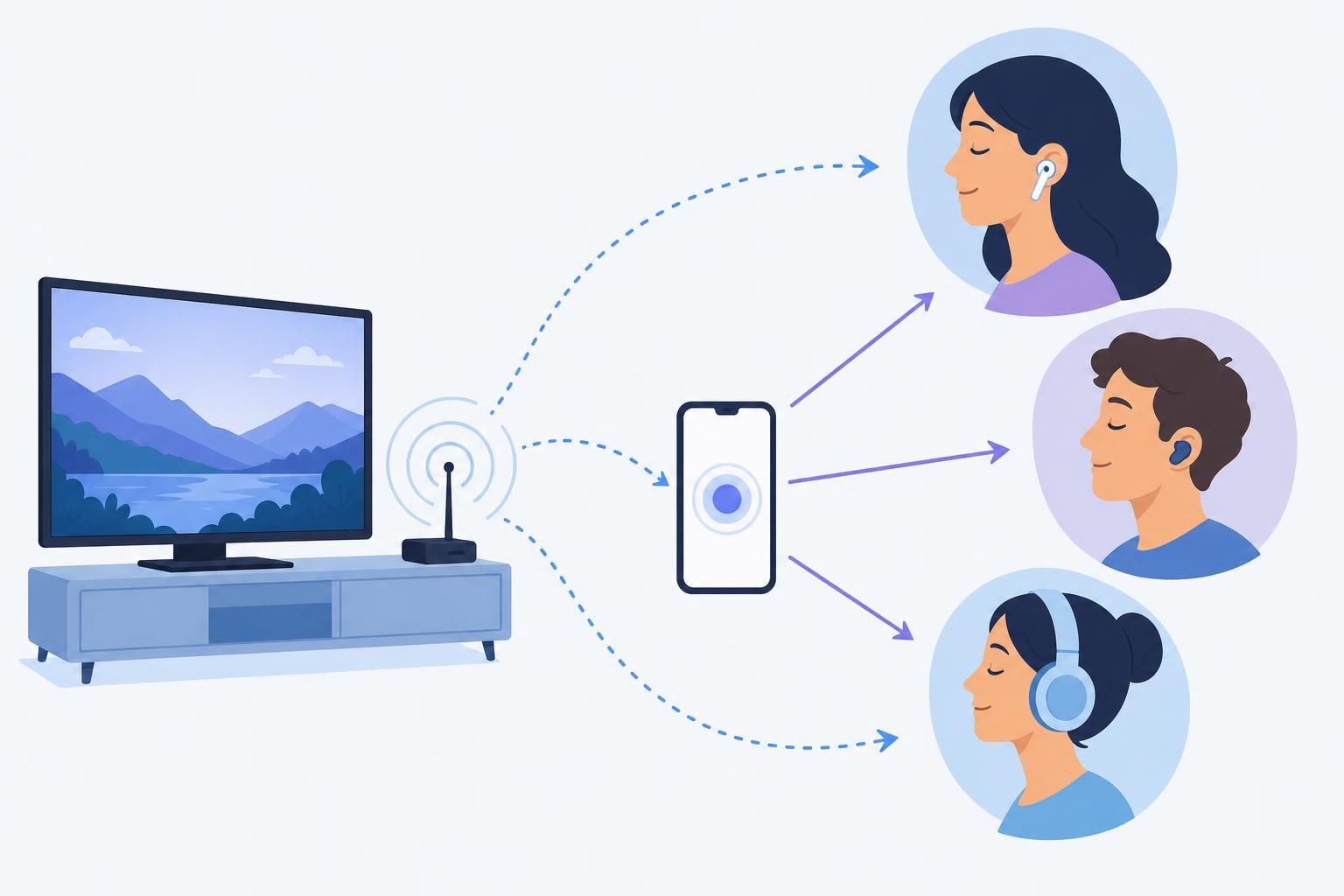
For example, if you have a device that can transmit TV audio, everyone can listen to the same audio using compatible earbuds or headphones. The reception range and how to operate it vary by device and environment.
How Is It Different from a Normal Bluetooth Connection?
With a normal Bluetooth connection, you typically pair your smartphone and earbuds to connect the devices to each other. Auracast, by contrast, is a system in which receivers choose and listen to a broadcast sent by a transmitter. The transmitter doesn't need to pair with each receiver one by one in the usual way. Bluetooth SIG's explanation of how to join also describes it as a mechanism different from normal pairing.
Some broadcasts can be joined by anyone, while others are encrypted and require a code to join. When sharing audio personally, check the settings of the devices you're using. (Bluetooth SIG FAQ)
What Roles Do Your Phone and Earbuds Play?
To understand Auracast, it helps to divide the devices' roles into "sending," "helping choose a broadcast" and "receiving."
If you choose a venue's broadcast on your smartphone, your earbuds use that information to receive the audio directly from the transmitter. The smartphone doesn't relay the audio the whole time you're listening. In some cases the receiver itself can find and join broadcasts, so a smartphone isn't always required. (Bluetooth SIG: How to join a broadcast)
On the other hand, if you want to share music from your own smartphone with people around you, the smartphone needs to act as a transmitter. The assistant function for finding broadcasts and the function for sending audio are separate roles, so check each one for your specific model. (Bluetooth SIG: Frequently asked questions)
2. Are Your Phone and Earbuds Compatible? How to Check
You can't tell whether a device can use Auracast just from its Bluetooth version or an "LE Audio compatible" label. According to Bluetooth SIG, Auracast requires specific features introduced in Bluetooth 5.2 and the Public Broadcast Profile included in the LE Audio specification. Auracast is also an optional feature even on LE Audio devices. (Bluetooth SIG: FAQ)
5 Steps to Check Compatibility
Check the devices you want to use in the following order.
1. Decide what you want to do
The roles you need change depending on whether you want to listen to a venue's broadcast through your earbuds or send your smartphone's audio to people around you.
2. Check the sending side
Check the product specifications and manuals of the TV, transmitter or smartphone you'll use to see whether it supports Auracast transmission.
3. Check the receiving side
Check the product specifications of your earbuds or headphones to see whether they support Auracast reception. Look for a mention of Auracast, not just "LE Audio compatible."
4. Check the phone you'll use to control it
If you want to search for and select broadcasts on your smartphone, check the manufacturer's information to see whether that model can be used as an assistant.
5. Check for updates and how to operate it
Check each manufacturer's product information for the software version and settings needed for support.
Whether existing devices can gain support through an update depends on their built-in Bluetooth features and the manufacturer's policy. An update doesn't necessarily mean you'll be able to use it. (Bluetooth SIG: FAQ)
What About Android?
Google's announcement on September 3, 2025 states that the Android Auracast features it describes are for certain compatible devices, and that both the smartphone and the headphones need to support LE Audio.
The announcement lists examples such as the Pixel 8 series and later and the Galaxy S23, S24 and S25, but these are examples as of September 3, 2025. It is not a complete list of all currently compatible models. Check the manufacturers' latest information for specific phone and earbud combinations.
Note that this condition, "both the phone and the headphones must support LE Audio," applies to the Android features Google describes. It doesn't mean that a smartphone is needed for every way of receiving Auracast.
If you'd like to learn about Bluetooth audio codecs separately, also see "What Makes High-Quality Earphones Different!? What Is a Codec?" Reading it as a separate topic from Auracast compatibility will make the differences easier to understand.
3. Where Can You Use Auracast?
Auracast is suited to situations where several people want to listen to one audio stream on their own receivers. Let's look at some examples.
Listening to the TV with Multiple People
If you can send audio from your home TV via Auracast, everyone can listen to the same program on compatible headphones. You'll need to check whether the TV itself supports transmission or whether you can use a compatible external transmitter.
As a product example, Sennheiser has announced the "RS 275," a TV set that combines headphones with an Auracast transmitter. It is introduced as a way to send audio to multiple compatible headphones, earbuds and other devices. (Sennheiser's official announcement)
Sharing Music from Your Phone with Friends
You can also use a compatible smartphone as a transmitter to listen to the same audio as friends nearby. As an example on Android, Google introduces audio sharing using QR codes and other methods. Check whether both the sending smartphone and the receiving devices are compatible. (Google's announcement)
Listening to Venue Announcements and Event Audio
Airport announcements, museum audio guides and TV audio at gyms are also expected uses. Google's announcement and Hibino's press material on its professional system introduce uses in such facilities as well as in meetings and tours.
These are examples of uses and don't mean that the facility you want to visit has already introduced it. When you actually use it, check with the facility whether a broadcast is available and how to use it.
4. Summary: Start by Checking the "Sending Side" and the "Receiving Side"
Auracast is a broadcast Bluetooth feature that can deliver one audio stream to multiple compatible devices nearby. A smartphone can act as the controller that finds broadcasts and, if supported, as the device that sends audio.
If you want to try it with your own devices, start by checking, model by model, whether your transmitter and earbuds support Auracast and, if needed, whether your smartphone has the control features. If you want to use it at a facility, also check whether a broadcast is provided there.
Related External Links
Bluetooth SIG "Auracast — How It Works"
Bluetooth SIG "Explained: How to join an Auracast broadcast" (November 3, 2022)
Bluetooth SIG "Answers to commonly asked questions about Auracast broadcast audio" (March 15, 2023)
Google "LE Audio Auracast support expands to more Android devices" (September 3, 2025)
Sennheiser "RS 275" official announcement (January 22, 2026)
Profile

web creator (design + front-end) who loves techno and other music. not only web-related and media business, but also sound production business.
Click here for inquiries,comments, and job requests.